
Part of the course: Front desk in Cary · 4/6
The patient's profile
Find the patient, upload their photo, fill in their details and phone numbers, record relationships, share them with another brand, organise their files with labels, record their consents, and check their credit, what they still owe, their appointments and their invoices.
The profile holds everything about a patient: their details, phone numbers, family, files, money, appointments and invoices. At the front desk it is where you will spend the most time after the schedule.
Find the patient
Open a profile
Step 1 of 4
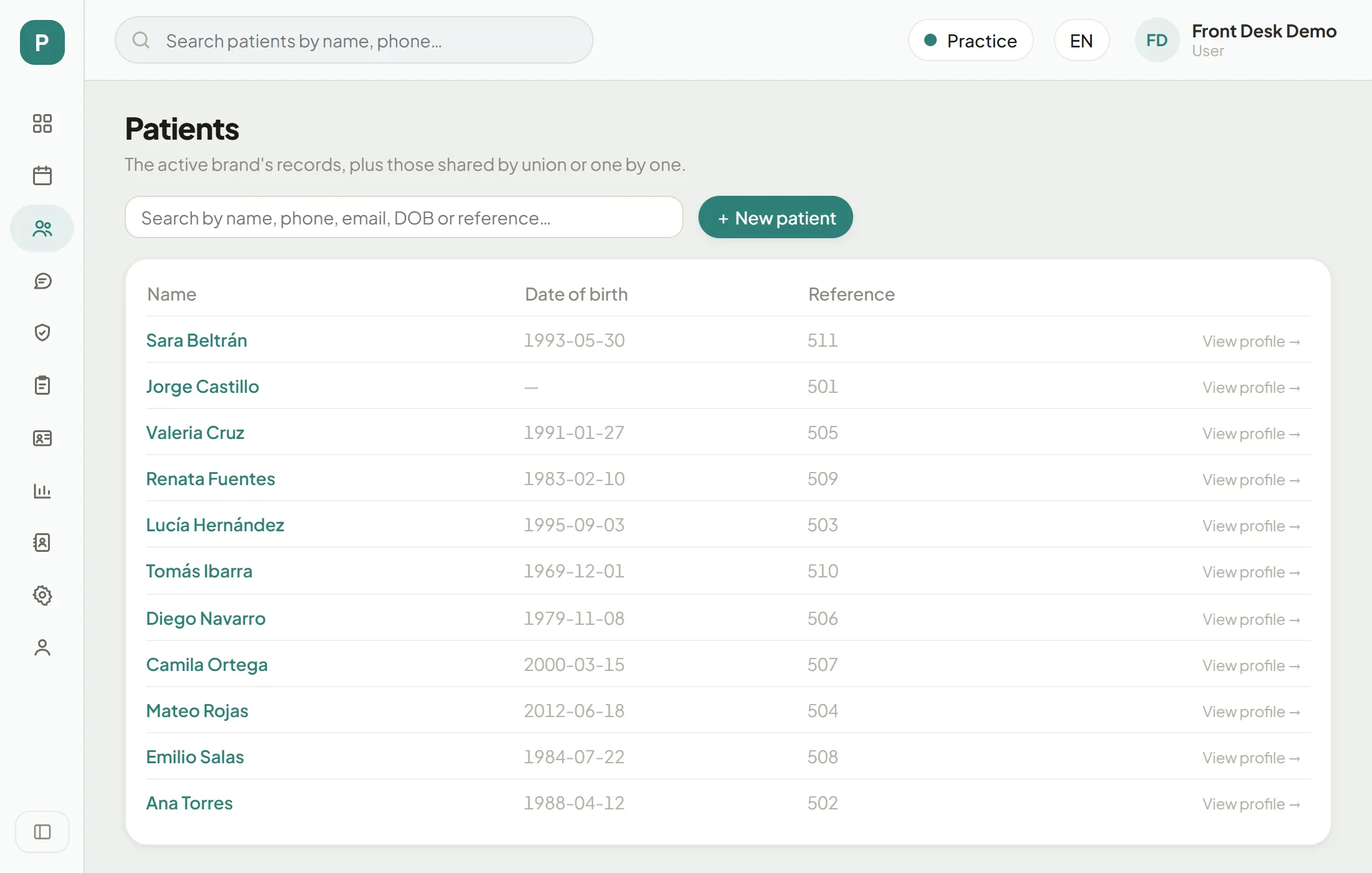
Patients
The third icon in the left-hand menu. It lists every patient of your brand, plus those another brand shared with you.
The profile header
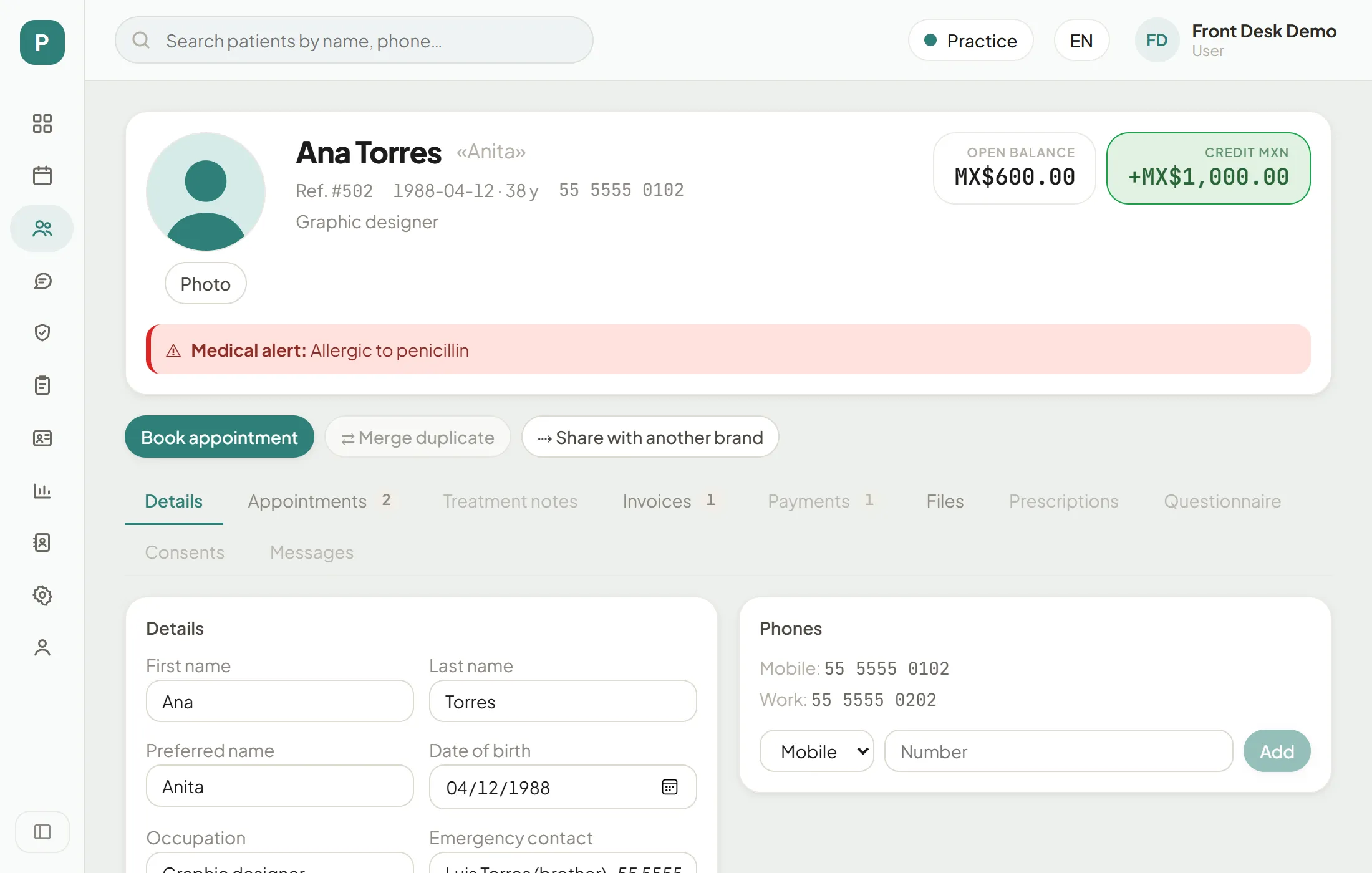
The first thing you see on a profile is its card: who the patient is and how their payments stand. The profile opens on the Details tab.
What the header tells you
Step 1 of 5
The photo
Press "Photo" and choose an image from your computer. It helps the front desk recognise the patient. Without one, their initials show.
Details, phones and fields
Fill in the details
Step 1 of 8
Details
First name, last name, preferred name, date of birth, occupation and emergency contact.
Relationships
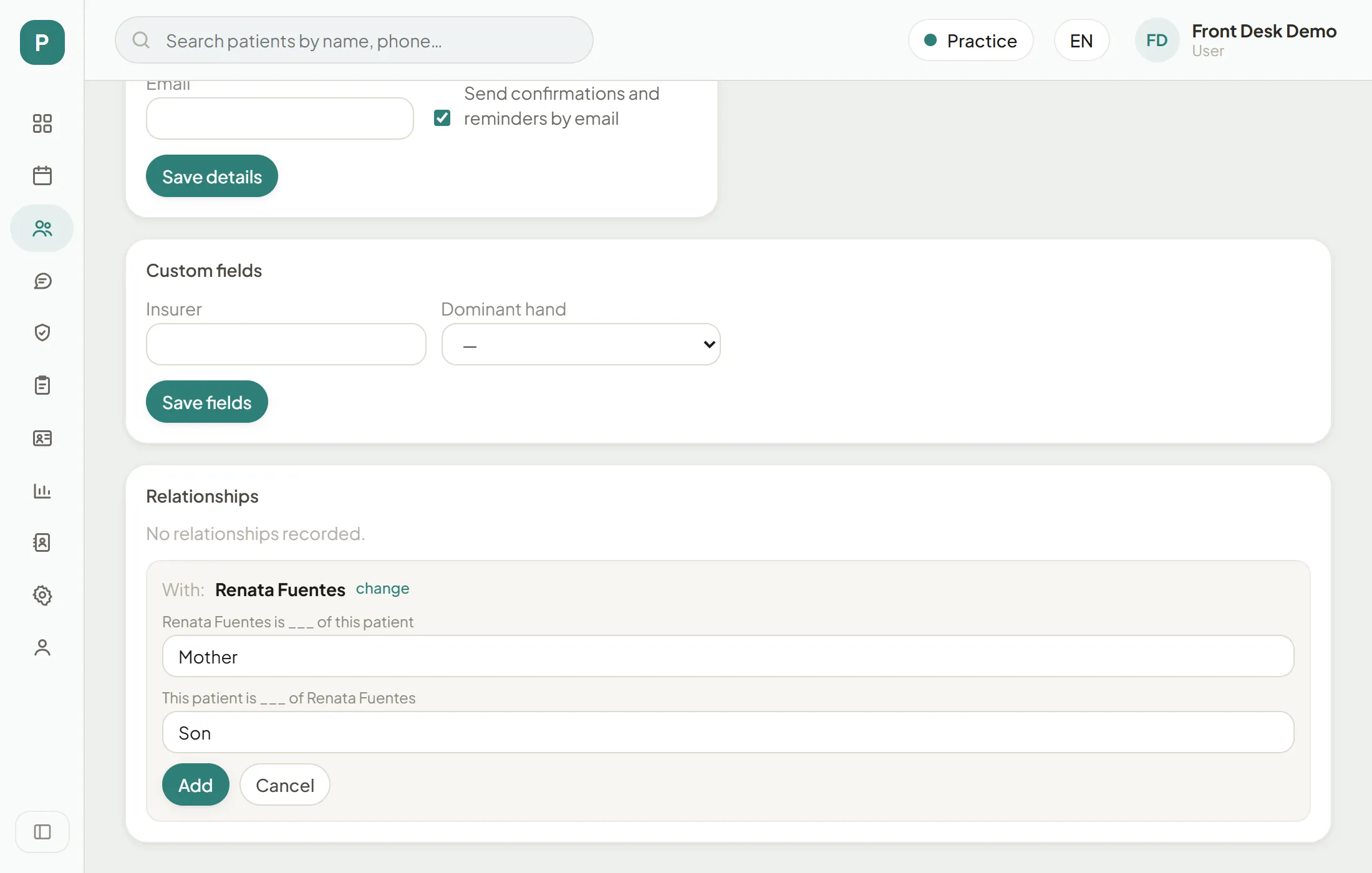
Link patients of the same family (mother and son, partners, siblings) to jump from one profile to the other with a click.
Record a relationship
Step 1 of 5
"+ Add relationship"
At the end of Details, under "Relationships". Search for the other patient by name and pick them.
Share with another brand
If your group runs several brands, a patient of yours can be seen at another one. Sharing the profile gives that brand access without a duplicate record.
Share the profile
Step 1 of 4
"⇢ Share with another brand"
Below the header, next to "Book appointment".
Files and labels
Upload and sort files
Step 1 of 5
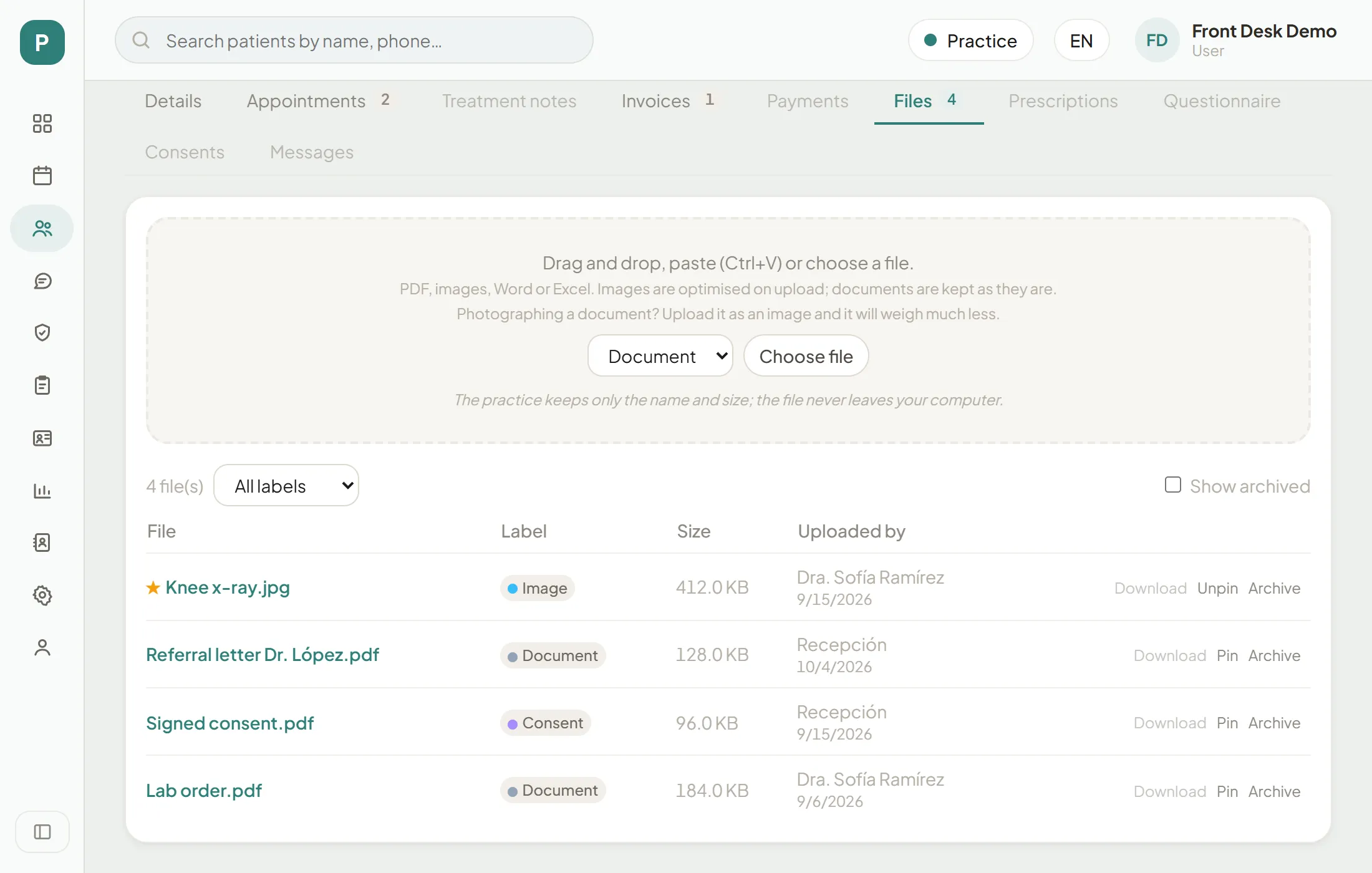
Pick the label
On the "Files" tab, before uploading, say what it is: Document, Image, Consent, Referral, Result or Other.
Credit and what is owed
The patient's money
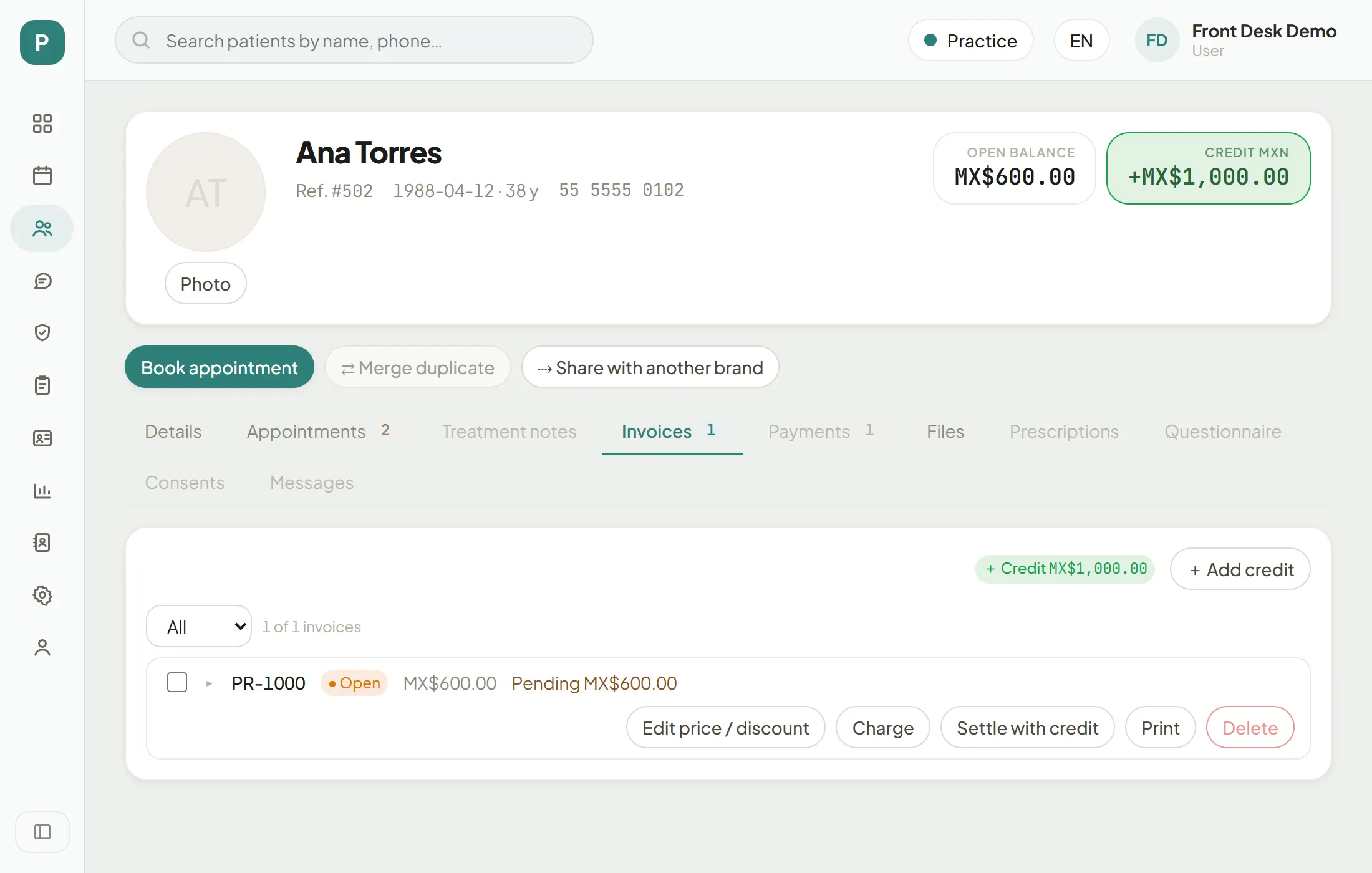
Step 1 of 6
Credit on Invoices
On the "Invoices" tab, top right, the credit in their favour ("+ Credit"). Without any, it says "No balance".
Consents
Without the patient’s consent to process their health data there is no legal basis for their clinical record. Recording it is front-desk work: the patient signs it on paper or in the online form, and you log it here.
Record a consent
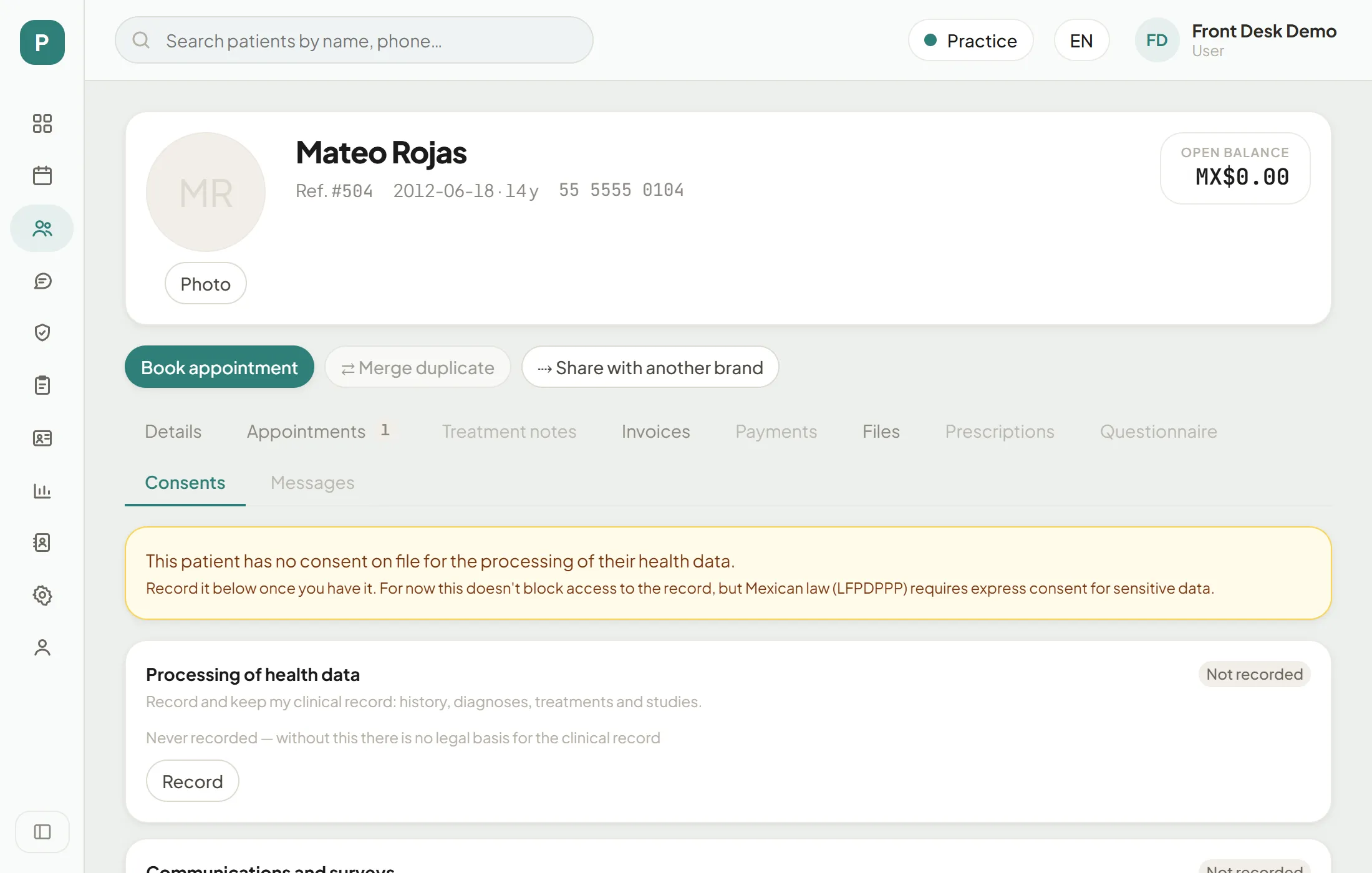
Step 1 of 4
The banner
Without consent to process health data there is no legal basis for the clinical record. Cary flags it on the "Consents" tab.
Their appointments and invoices
Check the history
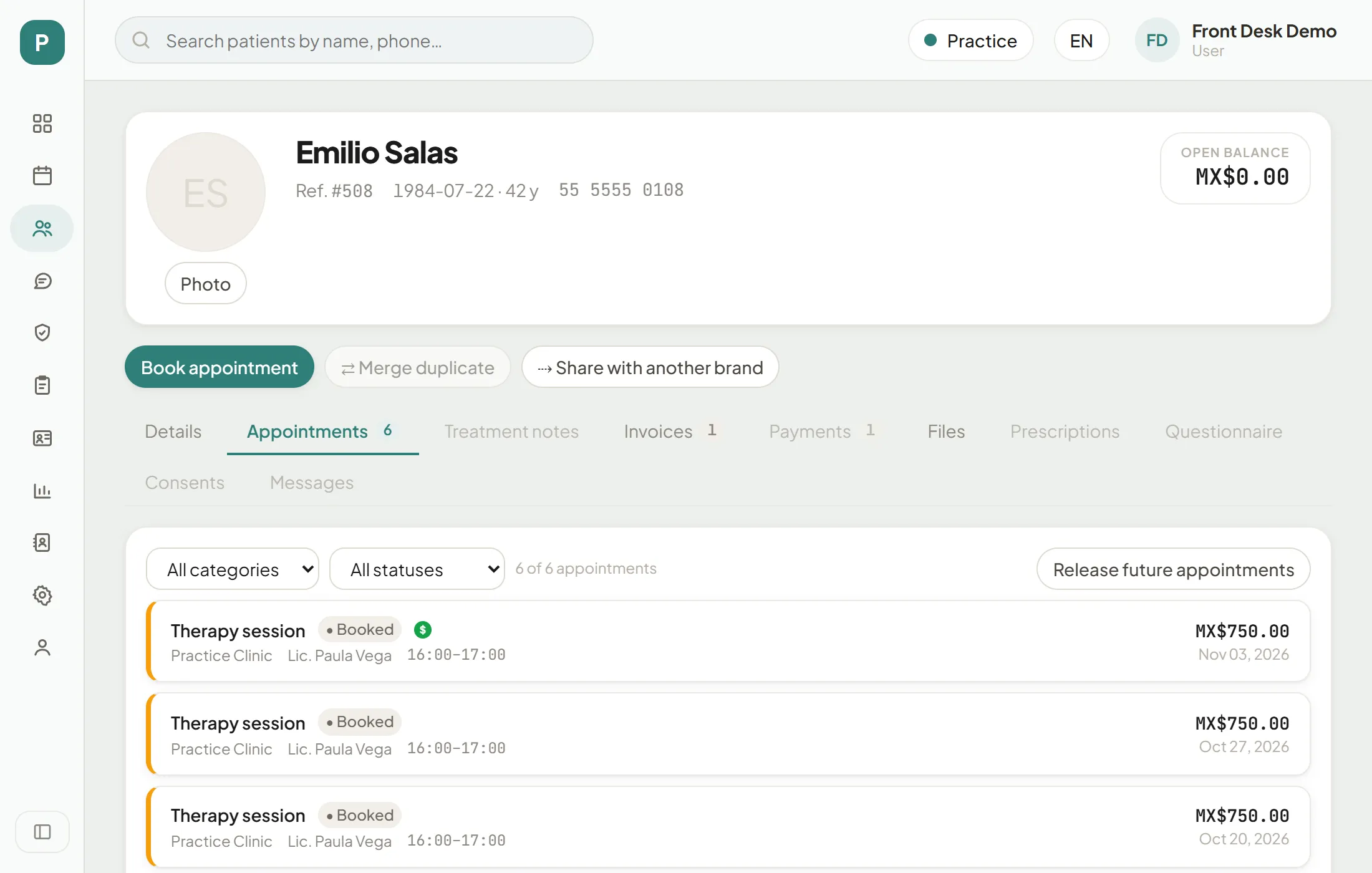
Step 1 of 3
Appointments
Every appointment, newest first, with its status and whether it is paid ($).
To release future appointments from the Appointments tab, see Confirmations, arrivals and changes; to charge and print, Invoice, charge and print the ticket.
Your turn: simulation
Simulation: your turn