
Part of the course: Front desk in Cary · 6/6
Linked visits between brands
Book a visit that is shared between two brands — online and at the clinic —, understand what happens when the other agenda is busy, and change the service of a linked visit.
What a linked visit is
Sometimes a patient is seen by a professional over video while sitting in the clinic with a team. That visit is two appointments: one on each brand’s agenda. Cary keeps them linked: each points at the other and they change together.
What gets linked is the service: Lumen’s “Online assessment” goes with the clinic’s “Initial assessment”. An administrator sets those links up; you just book.
Switch brand
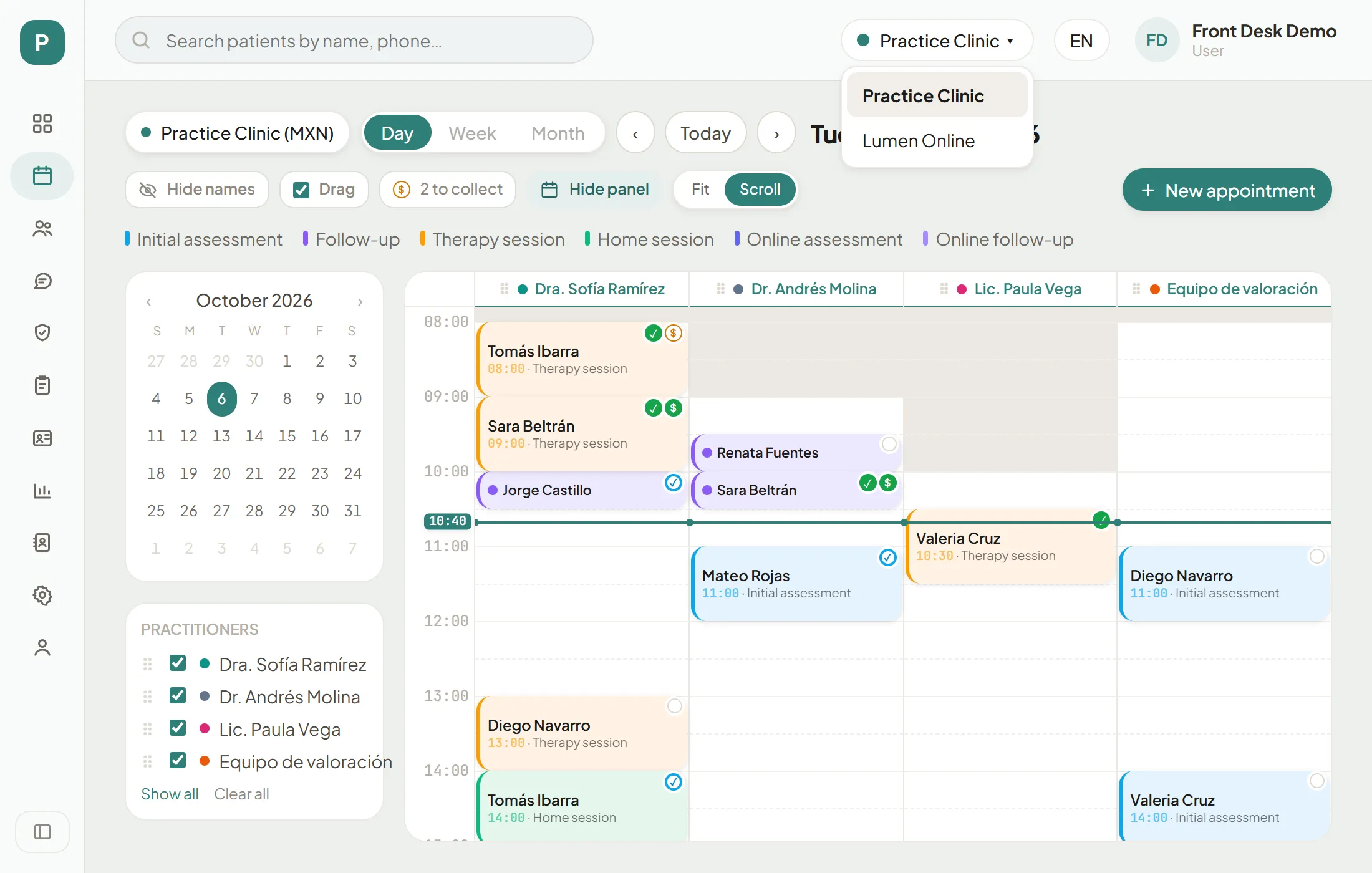
Each brand has its own agenda and its own front desk. In the practice, the brand switch (top right, before the language and your user) lets you work as one brand’s reception or the other’s. Linked visits can be created from either one and show up on both agendas.
The brand switch
Step 1 of 2
The active brand
It shows which brand you are working as: "Practice Clinic" or "Lumen Online". Press it to change.
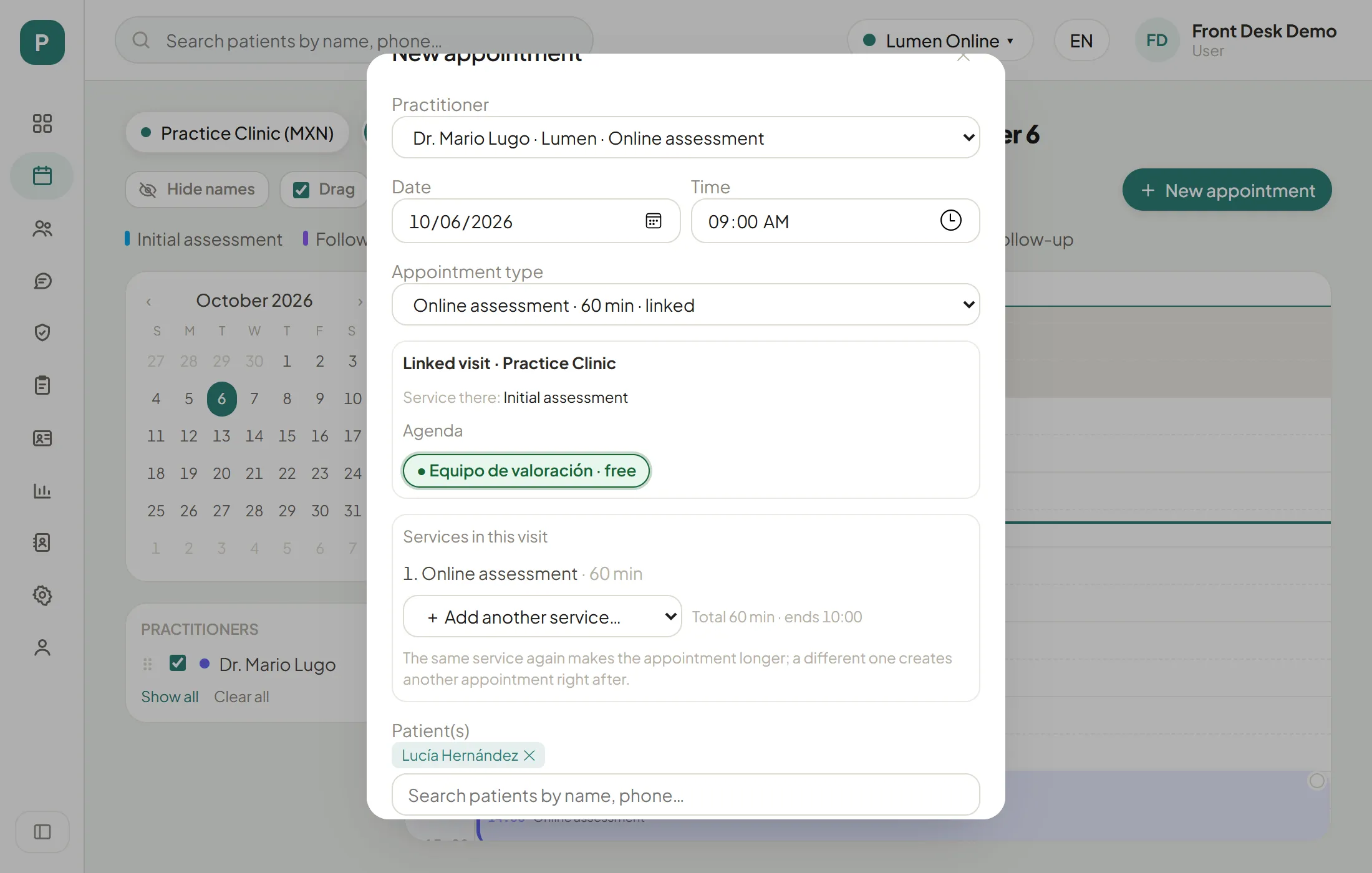
Booking from Lumen
Switch to Lumen Online first.
From the online agenda
Step 1 of 5
Pick the online service
With the Lumen professional selected, pick a service that has a partner at the clinic, for example "Online assessment".
Booking from the clinic
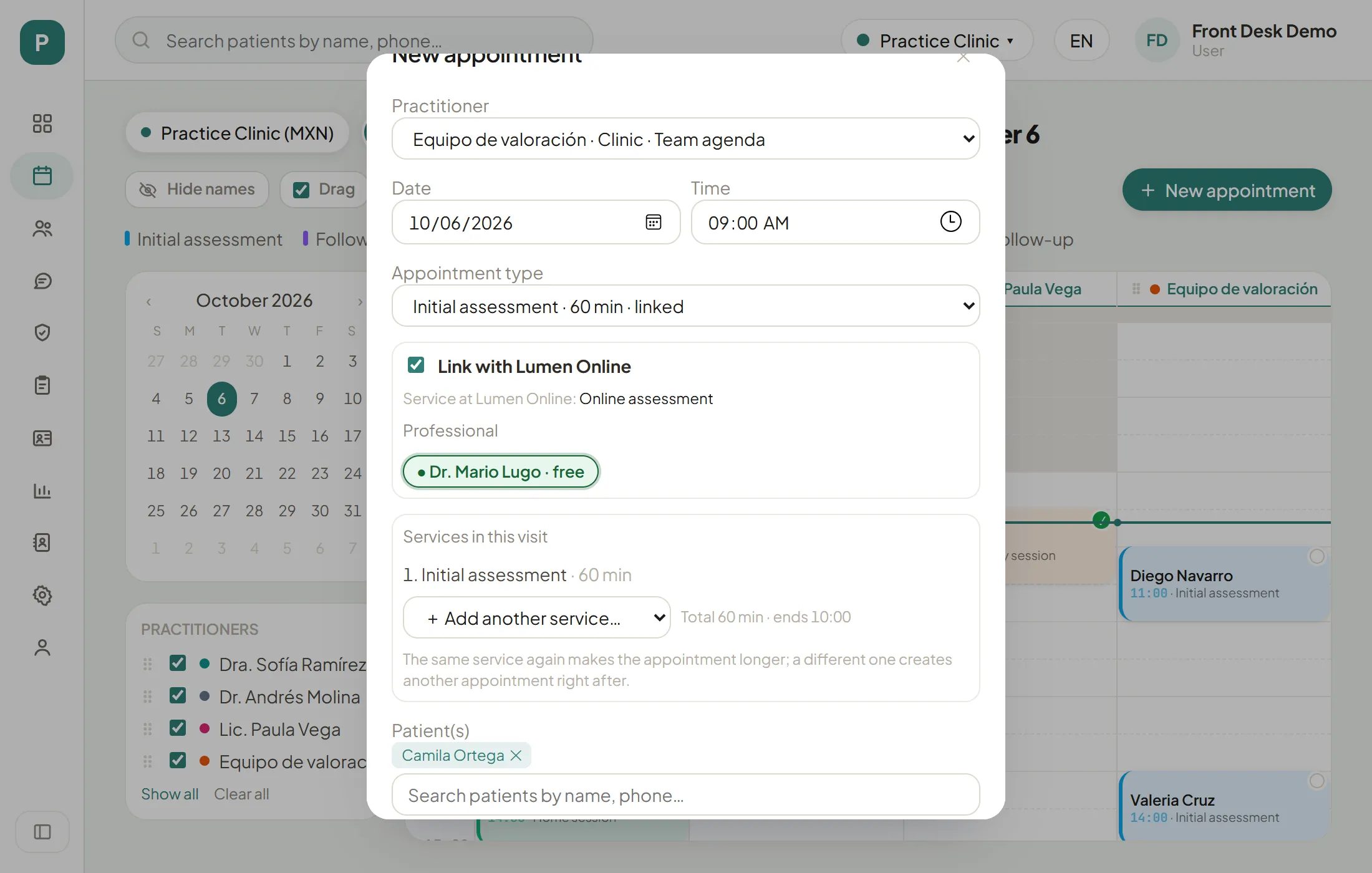
Switch to the Practice Clinic. If the agenda’s service has a partner at Lumen, you can create both appointments from your side too.
From the clinic agenda
Step 1 of 3
"Link with Lumen Online"
It starts ticked. Untick it if this appointment is for the clinic only: that agenda also holds visits that are not linked.
When the other agenda is busy
Both agendas are checked at once, but not by the same rule. This holds when you book, reschedule or drag the appointment on the schedule: a linked appointment never changes agenda either.
- Your own agenda: if it clashes with another appointment, Cary warns you and you can press “Book anyway”, as with any appointment.
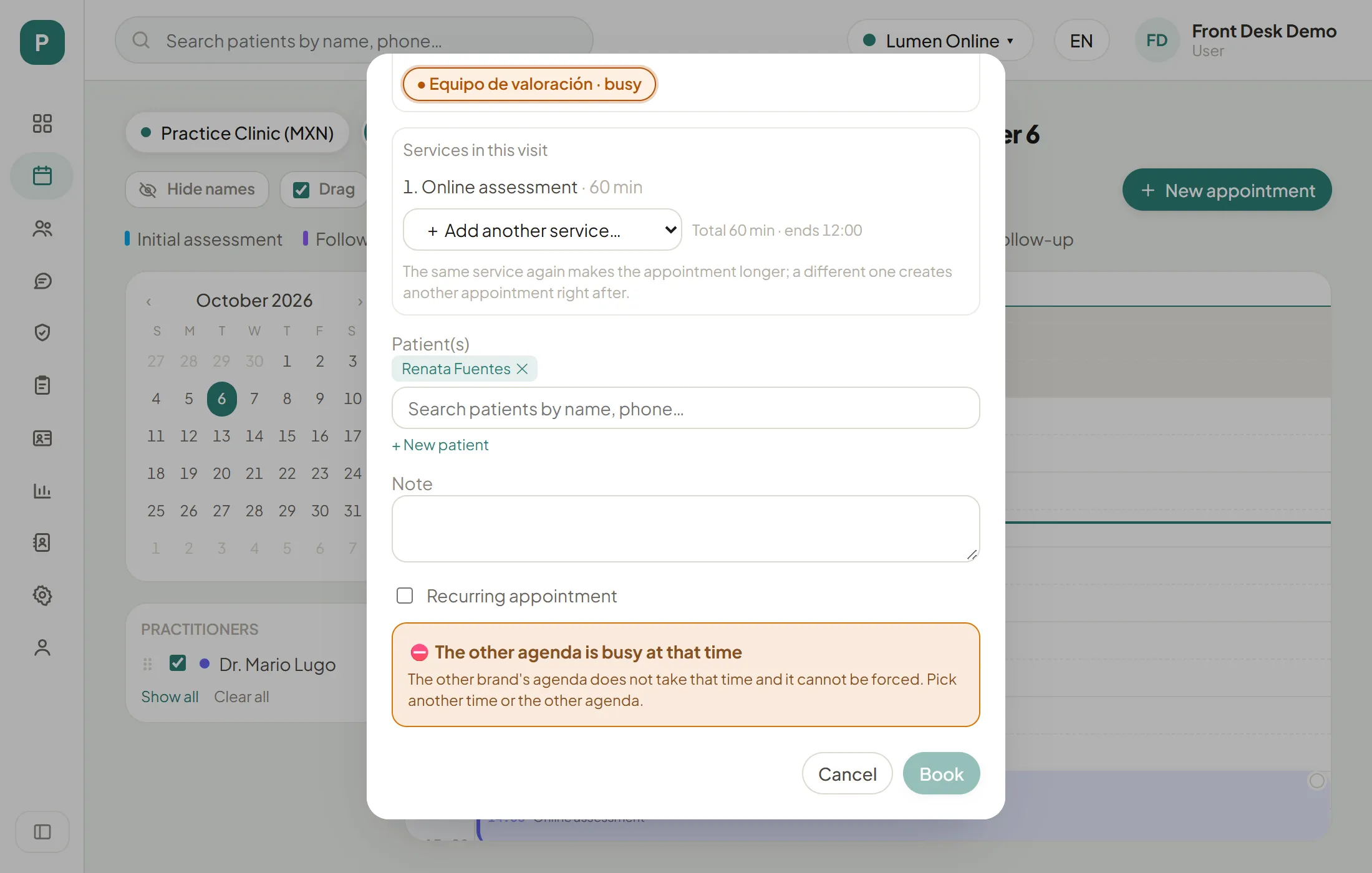
- The other brand’s agenda: if it does not take that time, the booking is refused and it cannot be forced. Pick another time or another agenda.
- Blocks: a blocked time can never be forced, on either agenda.
Some team agendas allow overlapping visits: the “Equipo de valoración” agenda accepts a new appointment if it starts at least 15 minutes before or after another. Two appointments at 11:00 clash; one at 11:00 and another at 11:15 do not.
A busy agenda
Step 1 of 2
The "busy" mark
Before you book you can already see that agenda is busy at 11:00.
What changes on both appointments
These stay equal on both appointments, wherever you make the change: the status (Arrived, Did not attend, cancelled), the confirmation, the internal note, the date, the time and the length. If you cancel one, the other is cancelled too.
In the appointment details
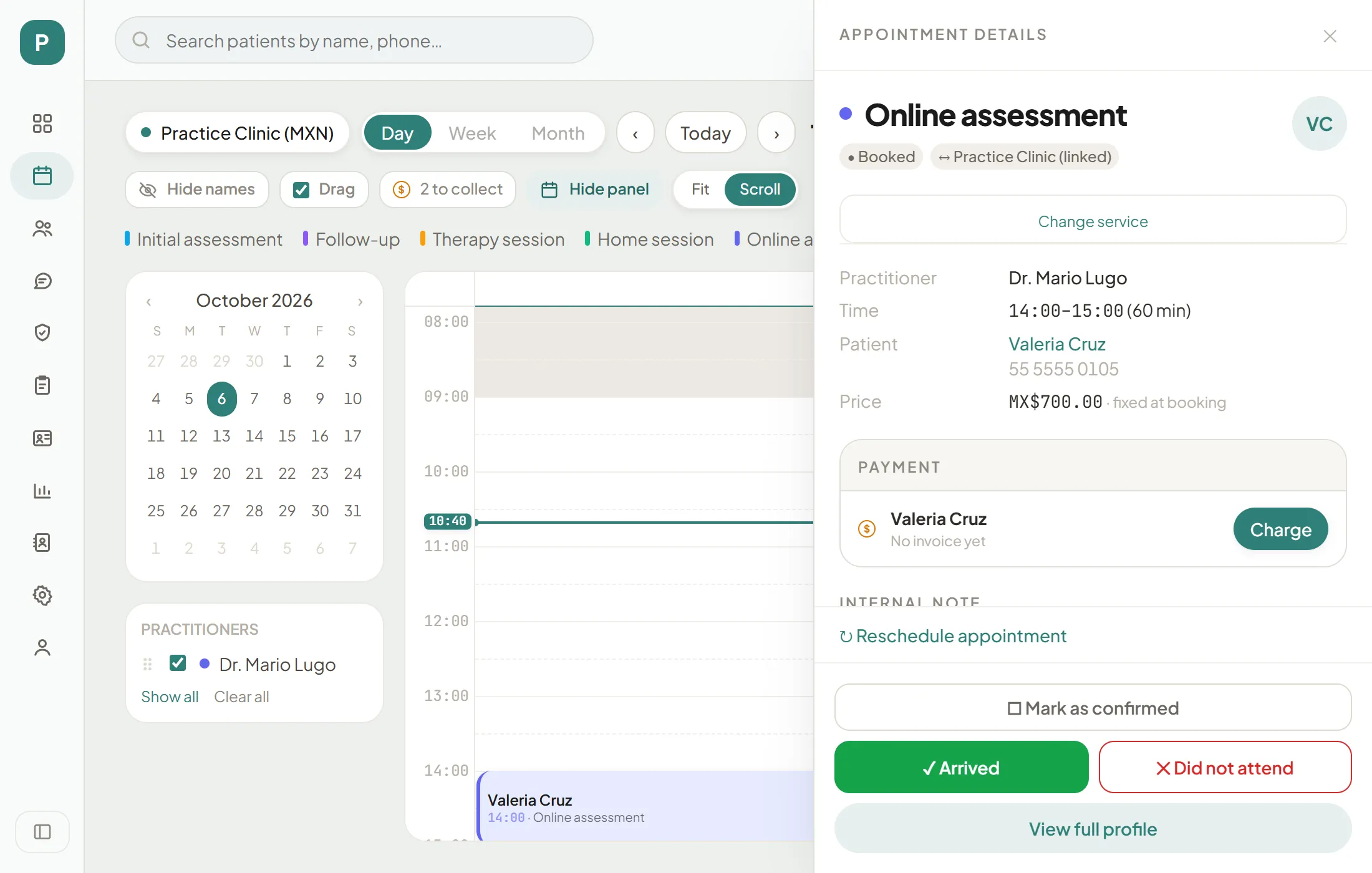
Step 1 of 1
The "linked" tag
In the appointment details, next to the status, a tag such as "↔ Practice Clinic (linked)" tells you which brand it is linked with. There is no special mark on the schedule: you only see it here.
Changing the service
If the patient needs a different service, you do not cancel and book again: use “Change service” in the appointment details.
- You only see services that keep the visit linked.
- The other appointment switches by itself to its matching service.
- If either appointment already has an invoice, it cannot be changed.
- If either was already cancelled or archived, it cannot be changed either.
Change the service
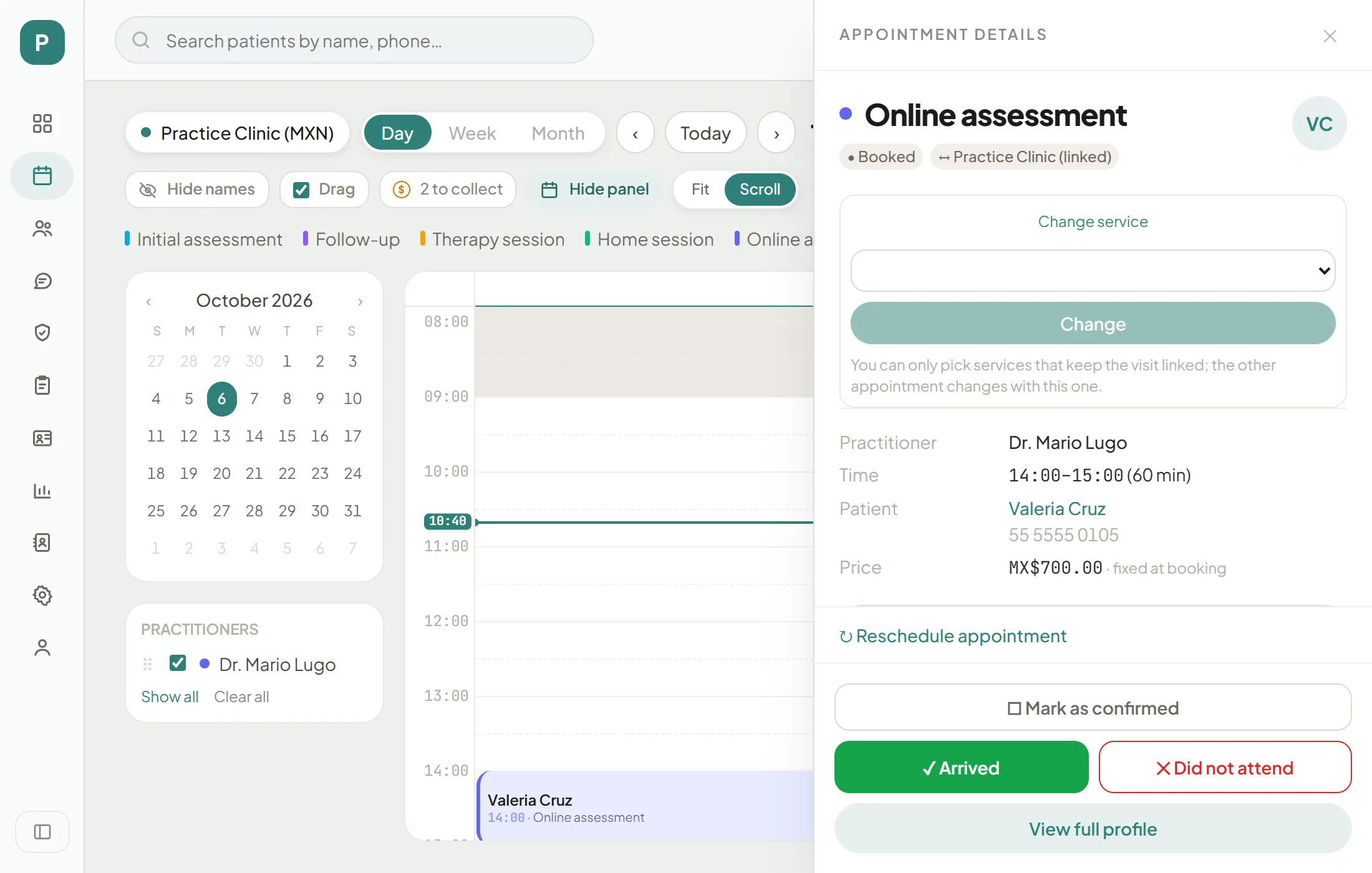
Step 1 of 3
Open "Change service"
It is the link right under the service name, in the details of the linked appointment.
Your turn: simulation
Simulation: your turn
Practice on the schedule
Use the brand switch, top right, to work as Lumen Online (Dr. Mario Lugo) or as the Practice Clinic (among others, the “Equipo de valoración” agenda). Tasks tick themselves off when you get them right.
Before booking a linked visit, check
0/5